Showing posts with label Photography. Show all posts

PICNIK: a fun way to edit and share photos in a flash

For those of you who knew me, I am a self-confessed, die-hard fan of Adobe Photoshop almost all my life. From photo editing to scrapbooking -- I do everything with Photoshop and I definitely can't imagine living my life without it. But with the advent of the social networking (such as Facebook, Twitter, Blogger and etc.) when things are shared faster than the speed of light, I had to reevaluate my strategy on how I edit and share my photos online. And then, luckily, I have stumbled upon PICNIK.


To those who are wondering what "PICNIK" is, well, it is a free online editing image program (which means no downloading!) offering many of useful tools to improve picture quality and a number of effects to stylize photographs and images while integrating with a lot of the post popular photo-sharing and social networking sites on the internet, including Facebook, MySpace, Flickr, Photobucket and others.


Picnik is quick, simple and easy to use. It allows you to edit your images in a number of ways. You can crop, rotate, resize, edit exposure, edit colors, sharpen, fix red eye, and auto fix. You can even do collages, scrapbook pages and add some shadowed text or journaling. It has a lot of cool photo editing effects too such as whitening of teeth, removal of blemishes and insta-thin! Some of the even cooler effects includes shine-be-gone, air-brush, wrinkle remover, tan, blush, mascara, highlights, eye and lip color changer (and many more) comes with a price for as low as $2.08/month. 


But on the down side, because this program is web-based, the speed of editing your photos will depend on how fast your internet connection is. Although nothing can still replace Adobe Photoshop when it comes to its features and capabilities, I would still highly recommend Picnik for beginners and for those people who don't have the time to learn complicated photo editing programs. Picnik has a very straight forward and user-friendly interface that anyone can use and enjoy. This is definitely worth the try.

Picnik has a lot more to offer and if you want to know more about it, click here.

Happy photo editing!!!

GET SORTED 2: programs to help you organize your digital photos -- for free!

In relation with my recent article entitled Get SORTED: Tips on How to Organize your Digital Photos, I want to share this article to help you get started with your digital photo organization project without costing you anything. So, read on and let me know what you think.


: : : : : : : : : : : : : : : : : : : : : :

Top 11 Free Photo Editors for Windows

By , About.com Guide
If you can't afford to purchase software, you can still find free software to create and edit images. Some of this software is developed by individuals, and some is feature limited or an earlier version of a more advanced program. In some rare instances, there are no strings attached, but most often you will need to provide information to the company by registering, or endure ads or "nag" screens.

1. PhotoScape

PhotoScape
On first glance, I thought Photoscape was going to be a dud, but I dug in deeper and realized why so many readers of this site have recommended it as a favorite free photo editor. It is jam-packed with features, while remaining very easy to use. Photoscape provides several modules including a viewer, editor, batch processor, Raw converter, file renamer, print layout tool, screen capture tool, color picker, and more. I'm very impressed overall at what has been packed into this free photo editor without sacrificing ease of use.

2. GIMP for Windows

GIMP
GIMP is a popular open-source image editor originally developed for Unix/Linux. Often lauded as the "free Photoshop," it does have an interface and features similar to Photoshop, but with a steep learning curve to match. Because it's volunteer-developed beta software, stability and frequency of updates could be an issue; however, many happy users report using GIMP for Windows without significant problems.
GIMP User Reviews | Write a Review

3. Paint.NET

Paint.NET
Paint.NET is a free image and photo manipulation software for Windows 2000, XP, Vista, or Server 2003. Paint.NET started development at Washington State University with additional help from Microsoft, and continues to be updated and maintained by some of the alumni that originally worked on it. Paint.NET features layers, painting and drawing tools, special effects, unlimited undo history, and levels adjustments. Paint.NET is completely free, and the source code is also available for free.

4. Serif PhotoPlus

Serif PhotoPlus SE
For a long time, Serif has given away previous versions of their software to entice users to purchase the current version. Recently, the company has changed that tactic, and now offer a free limited version of the photo-editing software PhotoPlus SE. PhotoPlus SE features an export optimizer, editable text, layer effects, layer masks, a red-eye removal tool, special effects, versatile brushes, and photo enhancement tools. PhotoPlus SE can be upgraded to the full version of PhotoPlus, with many more features, for a modest price.

5. Photo Pos Pro

Photo Pos Pro Screen Shot
Photo Pos Pro is a free photo editor with advanced features and a well-designed interface. From the developer: "Though the Photo Pos Pro software is a powerful program, it contains an extremely user-friendly interface enabling you to work intuitively. If you are a beginner you can easily begin to use the program in an intuitive fashion. With the Help system, you can turn from a beginner to a professional user." I've read a lot of good comments about this photo editor.

6. Pixia

Pixia Screen Shot© Ian Pullen
Pixia is the English version of a popular free painting and retouching software that originated in Japan. It features custom brush tips, multiple layers, masking, vector- and bitmap-based drawing tools, color, tone, and lighting adjustments, and multiple undo/redo. Like many freeware editors, there is no support for saving GIF format. Pixia is also available for many other languages. Pixia works with Windows 2000, XP, Vista and 7.

Get SORTED: tips on how to organize your digital photos


"Now is the time to get SORTED!"


I remember saying this to myself two years ago while I was going through my 56,000++ of digital photographs just to look for a nice picture to put on my new scrapbooking layout. What can I say? I am a mom and I love taking pictures!!! Family vacations, trips to the mall, a day at the park, chillin' out in the backyard, playing wii, you name it... I got it!


Having a digital camera is a blessing but it can be your curse when you just simply don't know how to organize your photographs.


or·gan·ize [awr-guh-nahyz] v. arrange, systematize, catalogue,classify, combine, coordinate, create, group, harmonize, line up, look after, methodize, put in order, put together, range, see to, standardize, straighten, straighten out, tabulate.


How ever you define it, one thing we can certainly agree on -- that it is not an easy task. But the reality is, somebody's got to do it and do it now!


If you were like me two years ago, in the middle of 56,000++ unsorted photographs to go through, don't despair and don't be overwhelmed as there is a solution to this problem. As the author of Time Management from the Inside Out and Organizing from the Inside Out, Julie Morgenstern suggest that we should adapt the S.P.A.C.E. Organizing Formula in sorting out tangible things. However, what I will be discussing below pertains to intangible things such as photographs (and if you are a digital scapper as I am), digital kit, elements and etc.

Sort - Group together your digital photographs in a folder. It would depend on how you would like to sort out your pictures (e.g. date taken, place, event)

Purge - Remove those photographs that you cannot use such as blurry, badly angled photographs, random pictures that doesn't make sense at all. Just use your best judgement before deleting any of these badly taken photos since there are a lot of software programs right now has the capacity to correct common photograph mishaps such as removal of red eye, straighten pictures, sharpen, adjust contrast, crop unwanted objects, just to name a few.

Assign - Make sure you know where in your computer or what drive it will be saved in. Will these photos go to your external hard drive or will you burn this into your CD? Just remember to make it logical, accessible for you to use it anytime and safe just in case your hard drive crashes. 

Containerize - Always put your pictures in folders and label them properly according to the date, event or place taken. Make use of the sub folders. Let us say, you went for a European vacation, here are samples on how you can organize. 


The France folder was organized according to places visited. The Italy folder was sorted out according to the dates the pictures were taken. And the Spain folder has sub folders according to name of events. And since the Fiesta de Moros y Cristianos is a 3-day event, sub  folders were created according to the date that the pictures were taken.

TIP: Always remember to tag your pictures properly. Like for this photo below, I will tag this as: [Name of the person], park, green, blue, mountains. Tagging is relative depending on how do you think is the best way for you to locate your pictures easily. For a digital scrapper like me, I would like to tag it by color as well.


Equalize - If you have so much pictures to organize, don't stress yourself out trying to finish it all in one day. Set a goal everyday to spend at least 15-20 minutes of your time organizing your photos. And you will just be surprised on how much you have progressed as the days go along. 


Once you have done all these, the next time you upload your photos in your computer, make sure to organize it right away. Don't wait until later or else you will find yourself again in the same situation you were in before... in the middle of thousands of unsorted photos. And you know, that ain't a pretty picture.


Happy sorting everyone!!!

Lights, Camera... Photoshop Actions

A kid on a Christmas morning -- that is how I feel right now upon re-discovering photoshop actions. 

Ever since I came up with an idea to put together hundreds and hundreds of photos for my kids, I have been racking my brains for the last 24hours on how to edit my pictures in photoshop in the fastest & easiest way possible with all the photographs looking in a uniform manner... and all of a sudden, I realize that the solution was right under my nose! 

Photoshop Actions!!! 


A Photoshop action is a recording of a sequence of commands and operations that you can save and access later on. For those unfamiliar with Photoshop actions, they’re simply pre-recorded tasks that you can save and reuse anytime. Photoshop actions commonly have an .atn file extension. Installing a Photoshop action for more recent versions of Photoshop is easy: simply drag the .atn file onto the Actions palette or place it directly inside your Adobe Photoshop\Presets\Photoshop Actions folder. 


To give you a more visual definition, see below.


And here are the images that I have so far edited together with the original pictures. Originals (on the left) & Edited (on the right).


In the end, not only does it save you a lot of time, but it gives you more uniformity in your photos when you need to lay it out side by side. There are a lot of photoshop actions available on line - some for free and some are not. It really depends on how you would like your picture to end up looking. And if you get a bit frustrated of not getting what you truly want with your photos, you can even make your own photoshop action.


RED

Those who are close to me knew that I have taken a back seat when it comes to updating my blogsite for almost 2 years. And that is why this post has been long over due, like 5 months overdue! 


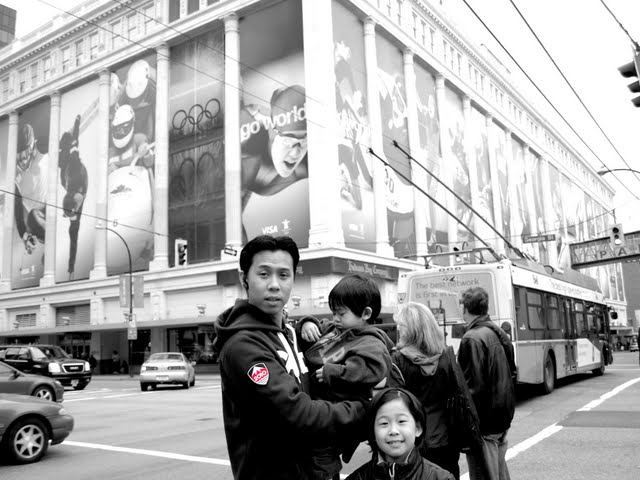
Last February, Vancouver BC hosted the 2010 Winter Olympics which brought in so much life to the city in which no one has ever seen before! Crowds gather in the downtown area just to see the games on the big screen, people lining up to see the different pavilions and of course, who could forget the flood of red colors anywhere you look?! 


And for that, I am now sharing with you the album that I have put together honoring this unforgettable event.


And here's more:


I'm Back

Hi everyone... I'm back! After more than a year long of absence, I'm really back! I miss blogging and I miss digital scrapbooking. I must admit, I haven't done anything much since we migrated here in Vancouver. But now, that we are all settled down... let the party begin!

To start with, here are the new photos I edited just last week...


I wasn't really planning to go back to my photo editing & scrapbooking thing anytime soon; however, since we decided to transfer to a new place and I need to "beautify" the house. I have decided to print and frame some pictures. It was then I realize how much I miss doing these...


And so, here I am... and I am back for good.